

What Are Composer Patches?
A patch is a file containing the differences between two versions of a set of files. It describes which lines should be added, removed, or changed.
In a Drupal project, patches are often used to address bugs in contributed modules or third-party libraries before an official release becomes available. For example, a module might contain a compatibility issue with a newer version of Drupal, or a particular feature might not work as expected.
Rather than editing the module directly inside the web/modules/contrib directory, a developer can maintain a patch file separately and configure Composer to apply it to the dependency.
This distinction matters because Composer manages dependencies. Directly editing files inside a downloaded package can result in changes being lost when the package is reinstalled or updated.
The cweagans/composer-patches package is commonly used for this purpose. Its configuration depends on the installed version, so the project's existing setup should be checked before adding a patch.
When Should You Use Composer Patches?
Composer patches are useful when a fix is needed but cannot yet be obtained through a normal dependency update. Common situations include:
- Bug fixes: Correcting an error in a contributed module while its maintainers work on a release.
- Compatibility fixes: Applying a change needed to work with a supported Drupal or PHP version.
- Incomplete upstream fixes: Testing a proposed solution from a Drupal.org issue before it becomes part of an official release.
- Project-specific adjustments: Applying a small, clearly defined change when there is no suitable configuration option or maintained alternative.
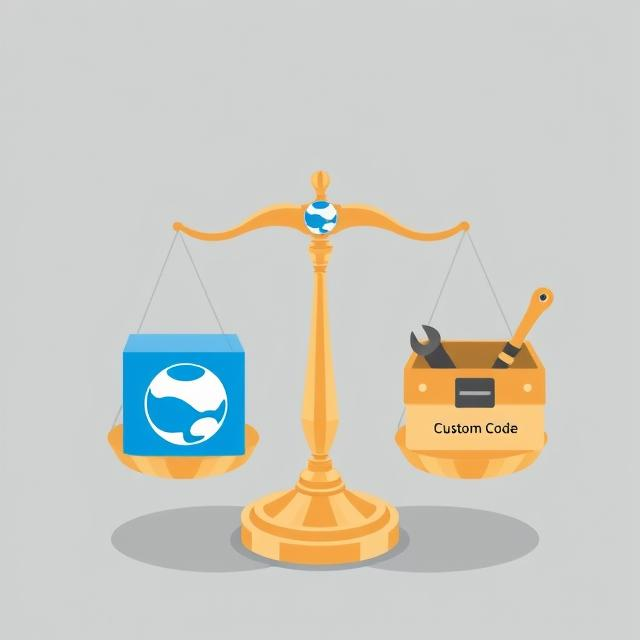
However, a patch is not always the best solution. Before using one, check whether an updated module version, an existing issue fix, or a configuration change already addresses the problem. If the change is substantial or needs to be maintained indefinitely, contributing the fix upstream or maintaining a separate module may be more appropriate.
How to Apply Composer Patches in Drupal
The following example illustrates the general workflow. The exact configuration depends on the version of cweagans/composer-patches used by the project.
1. Identify the issue
Start by reproducing the problem and checking the module's issue queue on Drupal.org. Look for an existing patch and review its discussion, supported versions, and testing status. Do not assume that a patch is suitable simply because its description matches the problem. Confirm that it applies to the version installed in your project.
2. Check the patching package
Check whether the project already uses Composer Patches: composer show cweagans/composer-patches. If the package is not installed, consult its documentation and install a version compatible with the project's Composer setup. Avoid upgrading the patching package blindly in an established project, as configuration formats and patch-handling behavior can differ between major versions. Official documentation: https://docs.cweagans.net/composer-patches/
3. Add the patch to the project
Add the patch configuration to your project's composer.json file, specifying the affected module, a description of the fix, and the patch file's location. Store local patch files in version control so they can be shared across environments. Make sure the configuration matches your installed version of cweagans/composer-patches.
4. Apply the patch
After adding the patch, run the appropriate Composer operation for your project. For example: composer install
If the dependency is already installed and the patch configuration has changed, the package may need to be reinstalled or otherwise processed again for the patch to take effect. The correct procedure depends on the installed Composer Patches version and the project's lock file.
Before running an update or reinstall operation, review the proposed changes and make sure you understand which dependencies may be affected.
5. Verify the result
After Composer finishes, confirm that the patch was applied and that the original issue is resolved.
Useful checks include:
- Reviewing Composer's output for patch application errors.
- Inspecting the affected file to confirm that the intended change is present.
- Running the module's relevant automated tests, where available.
- Testing the affected functionality in a development or staging environment.
A successful Composer operation does not necessarily mean that the patch fixes the underlying problem. Functional testing is still required.
Troubleshooting Common Problems
Patch failures often occur after a dependency changes or when a patch was created against a different version of a file.
1. The patch cannot be applied. Check whether the patch targets the installed module version. The upstream code may have changed, or the patch may already be partially included in the package.
2. The patch applies but the issue remains. Verify that the change addresses the actual cause of the problem. Review the patch contents and reproduce the issue again after applying it.
3. The patch stops working after an update. Review the updated module's code and compare it with the patch. You may need to find a newer patch, adjust the existing one, or remove it if the upstream fix has been released.
4. The patch is no longer needed. Remove the patch configuration and its file if nothing else uses it. Then verify the resulting dependency state and run the relevant tests.
When investigating a failure, Composer's output and the patch file itself are usually the best starting points. Avoid suppressing patch failures without understanding why they occurred.
Best Practices for Maintaining Composer Patches
Patches introduce additional maintenance work, so each one should have a clear purpose and an owner.
- Use a traceable source. Prefer patches linked to an upstream issue or merge request, with enough context to understand why the change is needed.
- Keep patch files in version control. Store project-maintained patches in a dedicated directory, such as
patches/, and commit them alongside the Composer configuration. - Document the reason for each patch. Include the issue URL, affected package, expected behavior, and any relevant version constraints.
- Test before deployment. Verify the patch in a development or staging environment before deploying it to production.
- Review patches during dependency updates. A patch may no longer apply cleanly or may conflict with changes in a newer release.
- Remove obsolete patches. Once the official package contains the fix, remove the patch and verify that the updated dependency works as expected.
It is also worth keeping the number of active patches under control. A long list of undocumented patches can make dependency upgrades more difficult and leave future developers unsure which changes are still necessary.
Conclusion
Composer patches provide Drupal developers with a practical way to apply targeted fixes while waiting for changes to reach an official release. By keeping patches in version control and applying them through Composer, teams can reproduce the same changes across development, testing, and production environments.
The main trade-off is maintenance. Every patch adds a change that must be reviewed when its underlying dependency evolves. Before introducing one, check for an existing release or upstream fix, confirm that the patch matches the installed package, and test the result.
A well-maintained patch should have a clear purpose, a traceable source, and a plan for removal when it is no longer needed.